You purchased the hardware. You paid for the device. Yet many Firestick users quickly realize that their viewing options are still limited by platform restrictions.
When you plug in a Firestick and connect it to the internet, the interface is designed to prioritize Amazon’s own ecosystem. Prime Video rentals, promoted apps, and paid content are placed front and center, while many powerful third-party streaming apps remain hidden or unavailable by default.
This has led thousands of users to look for ways to unlock the full potential of their device.
That’s where Jailbreak Firestick solutions come in.
A jailbroken Firestick allows you to install apps outside of the Amazon App Store, giving you access to a wider range of free movies, live TV channels, sports streams, and entertainment apps. The same process also applies to anyone looking to jailbreak Fire TV devices, as the software ecosystem is nearly identical.
In this guide, we will show you how to jailbreak Firestick devices safely and easily. No coding. No complicated tools. Just a few simple settings changes that remove unnecessary restrictions and give you full control over your streaming experience.
By the end of this tutorial, your JAILBROKEN FIRESTICK will be transformed from a basic streaming stick into a powerful, flexible media hub exactly the way it should have worked from the start.
What Is a Jailbroken Firestick?
When many users hear the term “jailbreak Firestick,” they often imagine complex hacking, security risks or permanent changes to the device. In reality, a jailbroken Firestick involves nothing of the sort.
On Firestick and Fire TV devices, “jailbreaking” is simply a popular term used to describe sideloading apps.
You are not modifying the hardware, bypassing security systems, or altering Amazon’s operating software. Instead, you are enabling a built-in Android setting that allows the installation of applications from outside the Amazon App Store.
This setting exists by default. Amazon simply keeps it turned off.
By enabling it, you are giving yourself permission to install third-party apps that Amazon has not officially listed, many of which provide access to free movies, live TV, sports, and on-demand content. The same process applies whether you want to jailbreak Firestick models or jailbreak Fire TV devices.
Is Jailbreaking a Firestick Legal?
Yes. Jailbreaking a Firestick is legal.
Does It Void the Warranty?
No. Since no system files are modified, your warranty remains intact.
Can It Be Reversed?
Yes. The process can be undone at any time by disabling the setting, it takes only a few seconds.
Think of your Firestick like a smartphone. Out of the box, Amazon restricts app downloads to its own store. A JAILBROKEN FIRESTICK simply allows you to install apps from the wider internet, giving you more freedom and control over how you use the device you already own.
Step 1: Unlock Firestick Developer Options & Enable Unknown Apps
To begin how to jailbreak Firestick devices, the first step is unlocking Developer Options. This setting is required to install third-party apps and is essential for creating a jailbroken Firestick.
In late 2023, Amazon released a Fire OS update across millions of devices, including the Fire TV Stick 4K Max and Fire TV Cube. After this update, the Developer Options menu was no longer visible by default. While the option appears to be removed, it is simply hidden within the system.
This applies whether you want to jailbreak Firestick models or jailbreak Fire TV devices, as the process is the same across Fire OS.
Once Developer Options are unlocked, you will be able to enable Unknown Apps, which allows your device to install applications outside the Amazon App Store. This is the foundation of a JAILBROKEN FIRESTICK and does not involve modifying hardware or system files.
How to Get to Developer Options on Firestick
1. Select “My Fire TV”: It’s usually near the bottom. Click it.
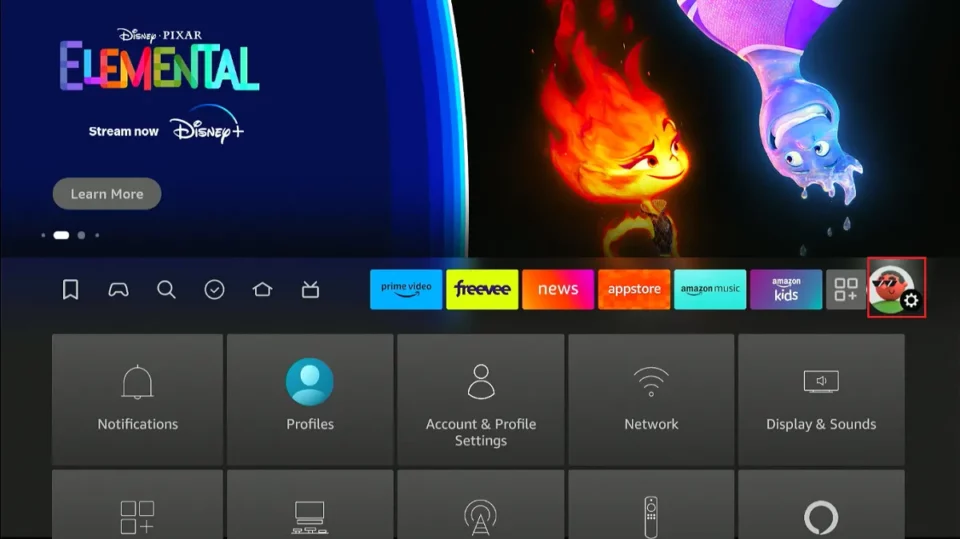
2. Navigate to My Fire TV.
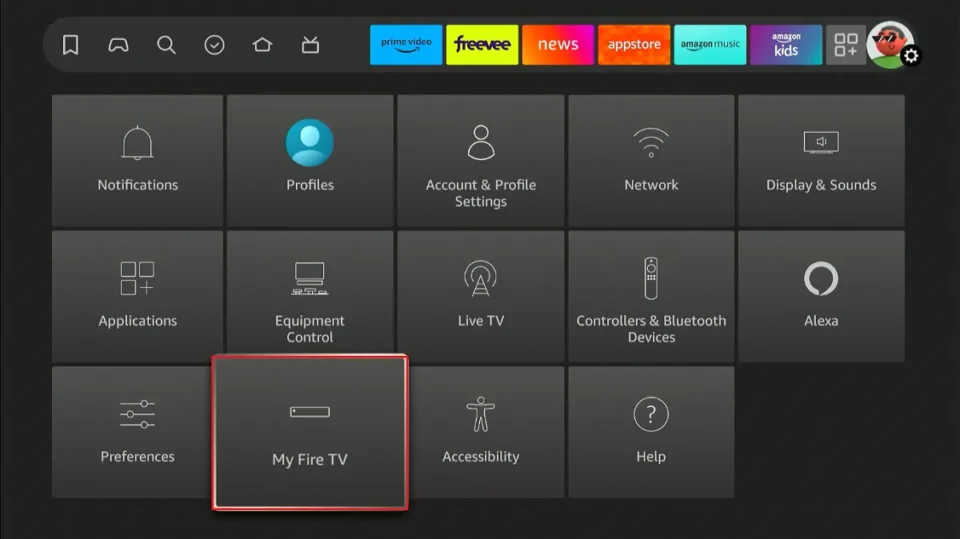
3. Click “About”: This is the top option.
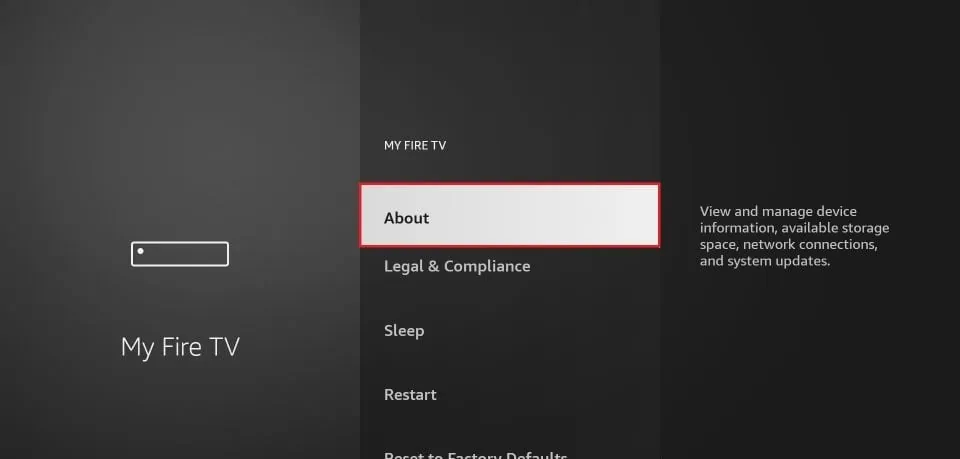
4. Click 7 Times: Press the Select (center) button on your remote seven times rapidly.
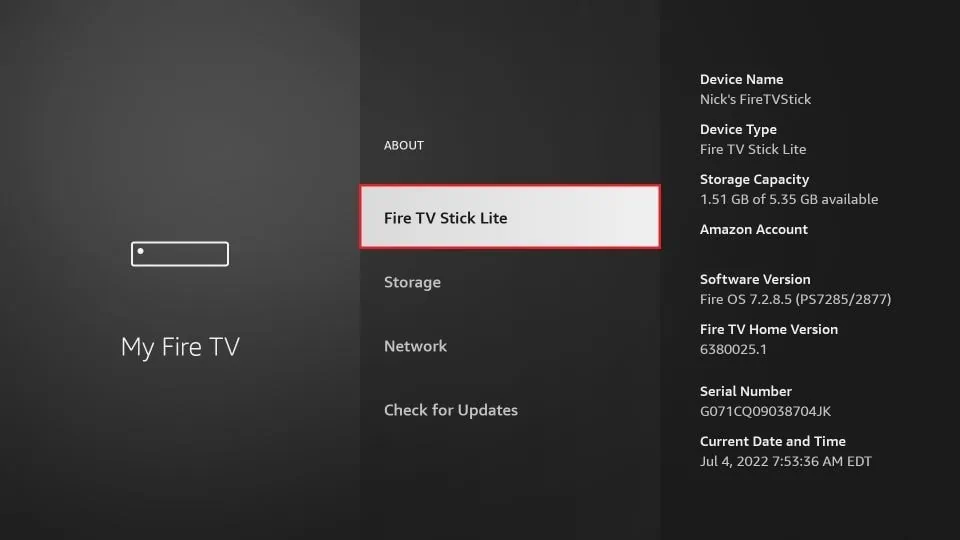
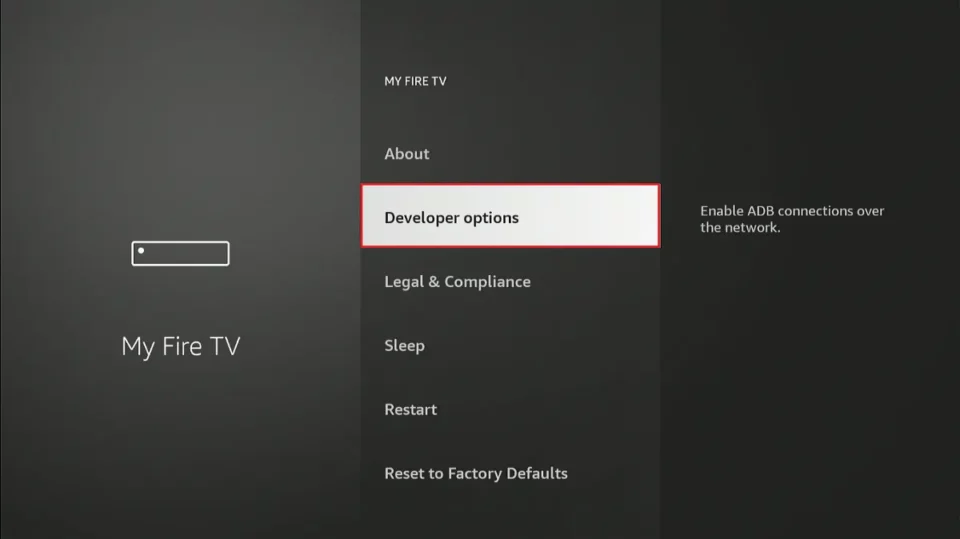
5. Press the Back button on your remote once. Look at the menu again. You will now see Developer Options.
Step 2: Install downloader app firestick
You have the key (Developer Options), but you still need a car to drive out of the Amazon Appstore.
The built-in Amazon Silk browser is clunky and terrible for downloading files. You need a dedicated tool. We use an app called Downloader. It is the Swiss Army Knife of the Firestick community.
You can find this app by simply searching for it within the Amazon App Store. Downloading should take less than a minute.
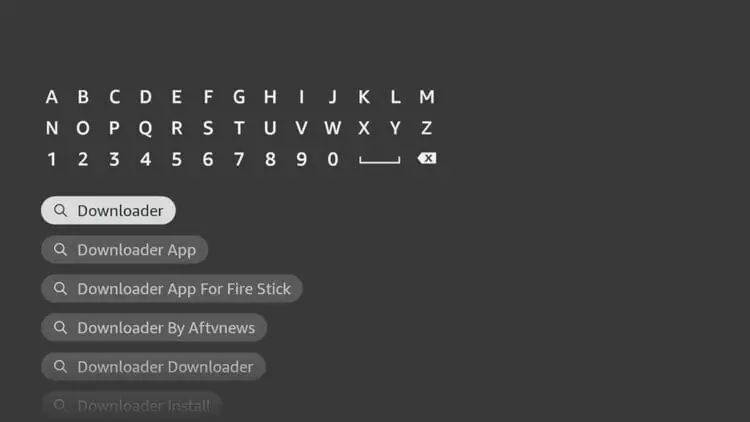
1. Open the “Amazon App Store” or find the search bar on your device.
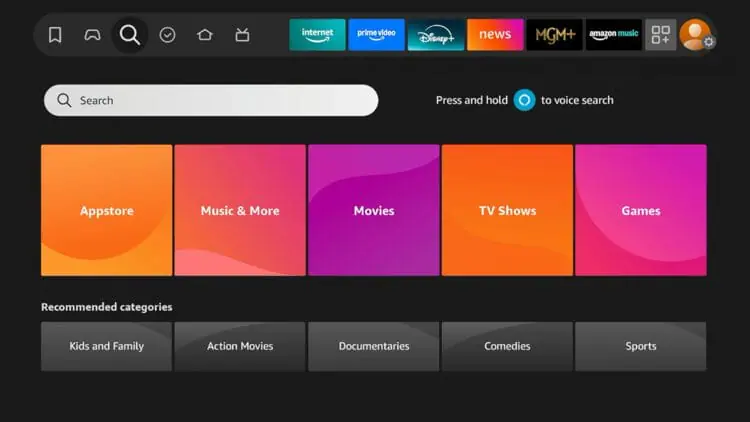
2. Type “Downloader app firestick” and click the first option that appears.
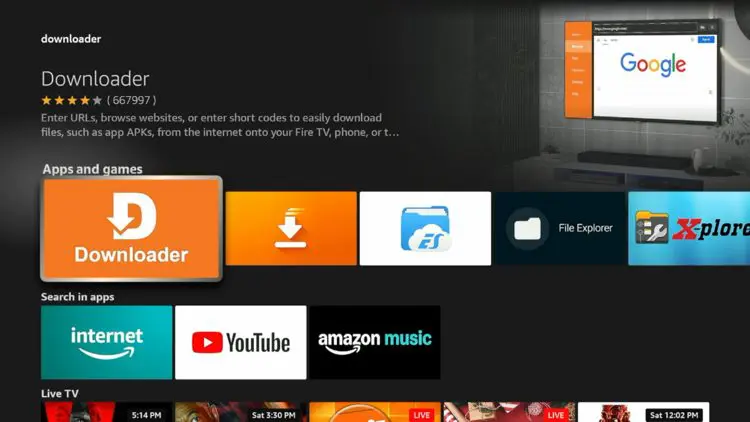
3. Select Downloader under Apps and games.
4. Click Download and Wait a few seconds for the Downloader app to install
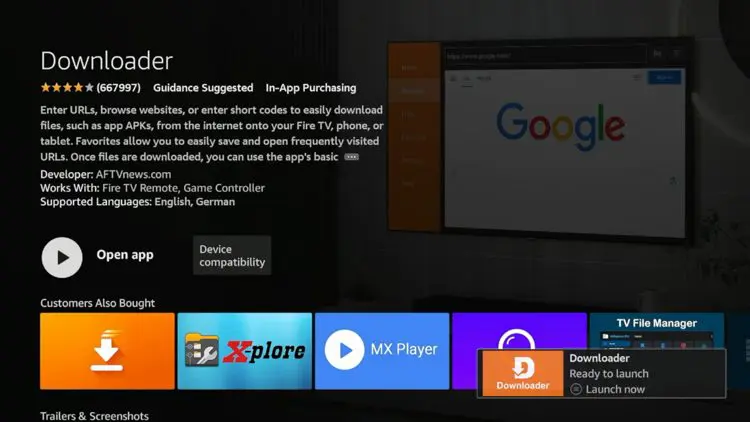
After you have installed downloader app firestick, return to the home screen of your device.
STOP. Read this next part carefully.
When you first open Downloader, it will ask for permission to access photos, media, and files.
Click ALLOW.
If you click Deny, the app breaks. It cannot save the files you try to download. If you accidentally denied it, you have to go into Settings > Applications > Manage Installed Applications > Downloader > Permissions and turn it on manually. Save yourself the headache: just click Allow the first time.
Step 3: Turn On Unknown Sources
This is the key step to jailbreaking a Fire TV Stick. It’s the only modification that we are making on the device. After doing this, your device is officially unlocked and you can find free media apps to install! There are two different methods for allowing unknown sources and we provide both below.
1. Go back to Settings > My Fire TV.
2. Open Developer Options.
3. Important Variation:
On Newer Interface (Most 4K Models): Click Install Unknown Apps. Turn it ON.
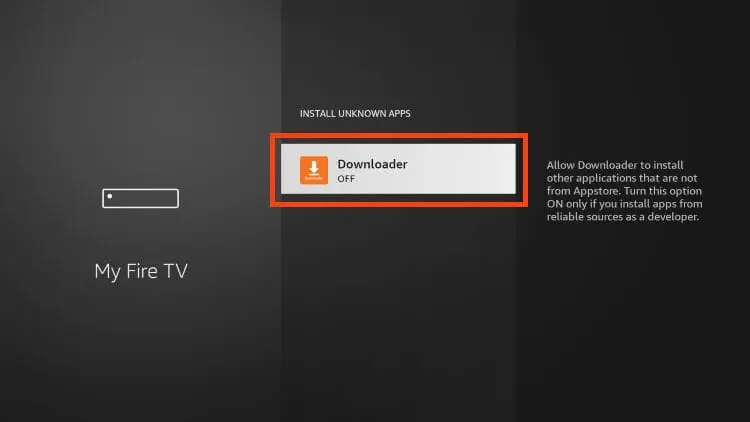
On Older Interface: You might see “Apps from Unknown Sources.” Turn it ON.
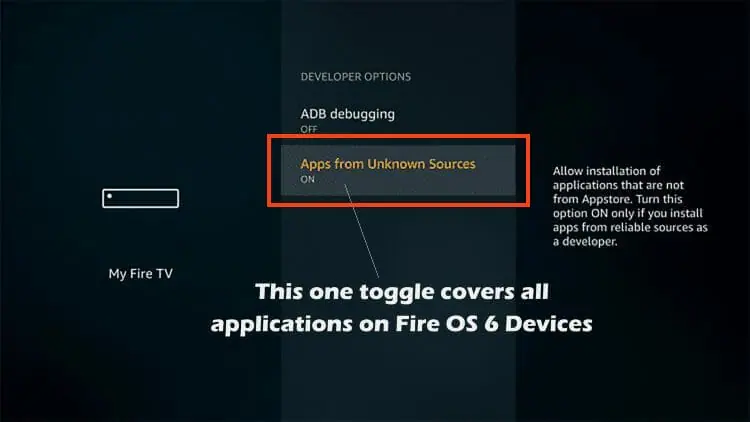
Congratulations. You have successfully learned how to jailbreak Firestick devices.
Your device is now fully unlocked and ready to install third-party applications.
Step 4: Install IPTV Smarters Pro on FireStick
IPTV smarters pro is one of the most popular players for streaming live TV channels. It does not contain content itself, you must use it with a playlist from a service provider.
Once your Firestick is unlocked and ready for third-party apps, you can proceed with installing IPTV Smarters. Follow the steps below carefully.
Installation Instructions:
1. Open the Downloader app on your Firestick.
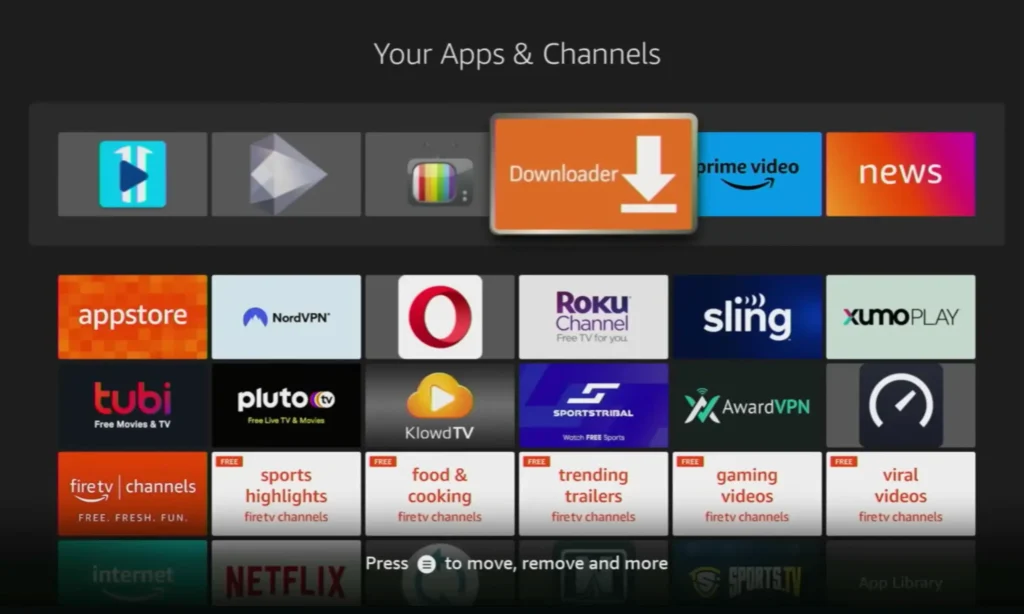
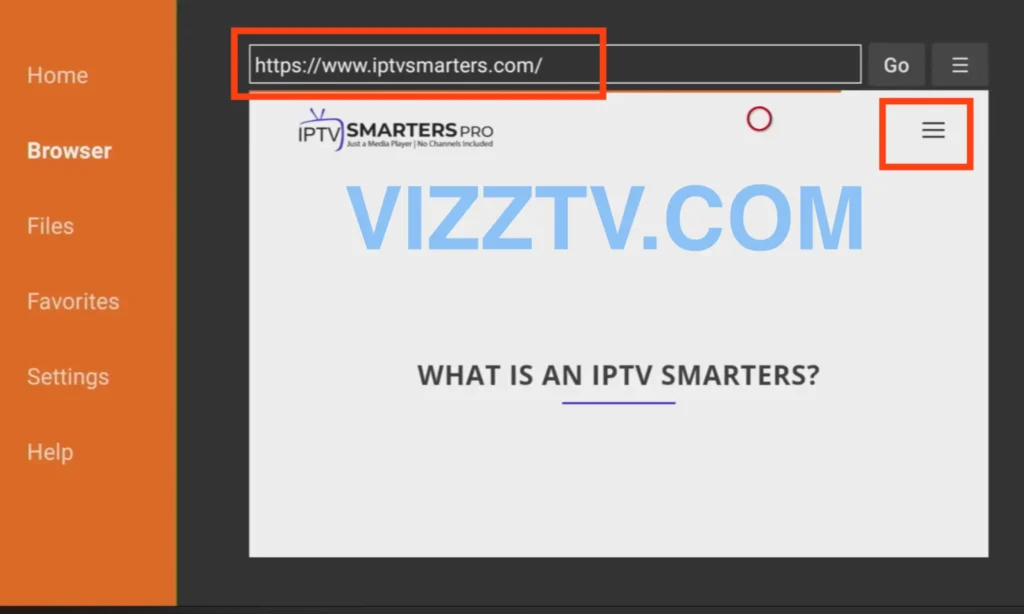
2. In the Downloader search bar, enter the following URL exactly as shown:
https://www.iptvsmarters.com/ Then press Go.
When the website loads, open the menu icon located on the right side of the page.
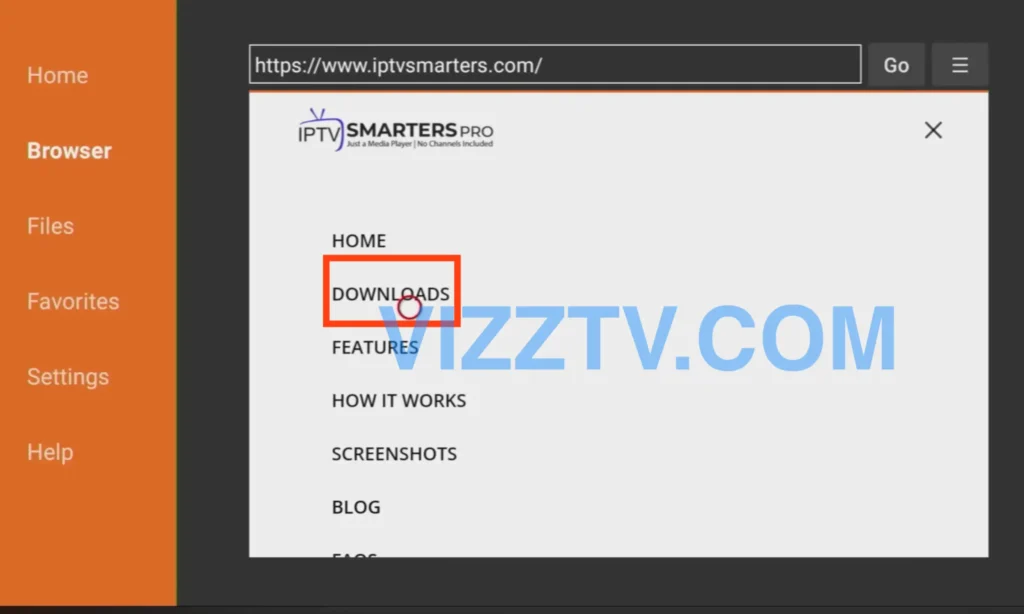
3. Select Downloads from the menu.
4. Scroll down and click on the APK file compatible with Firestick.
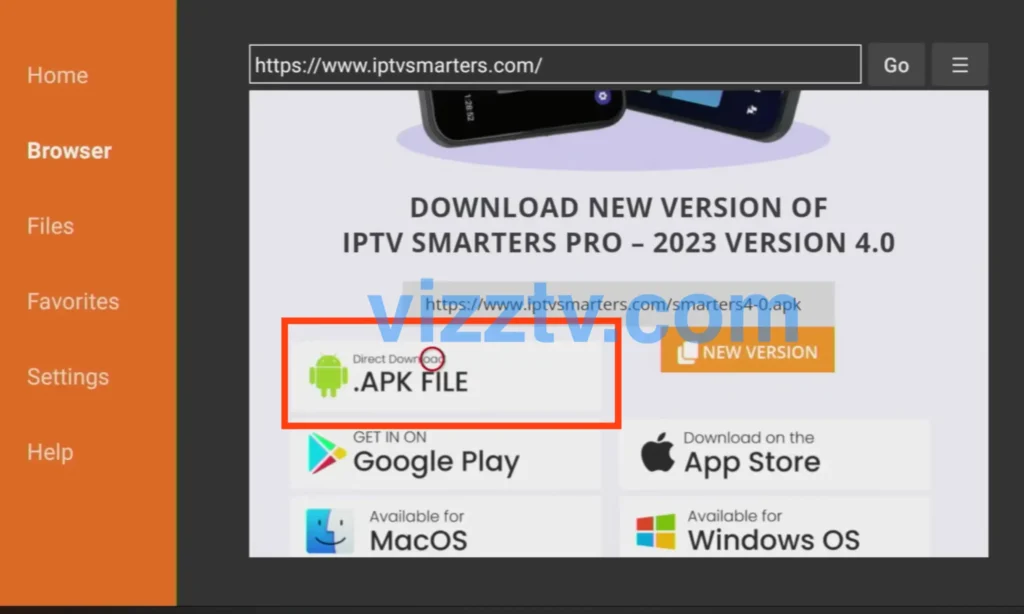
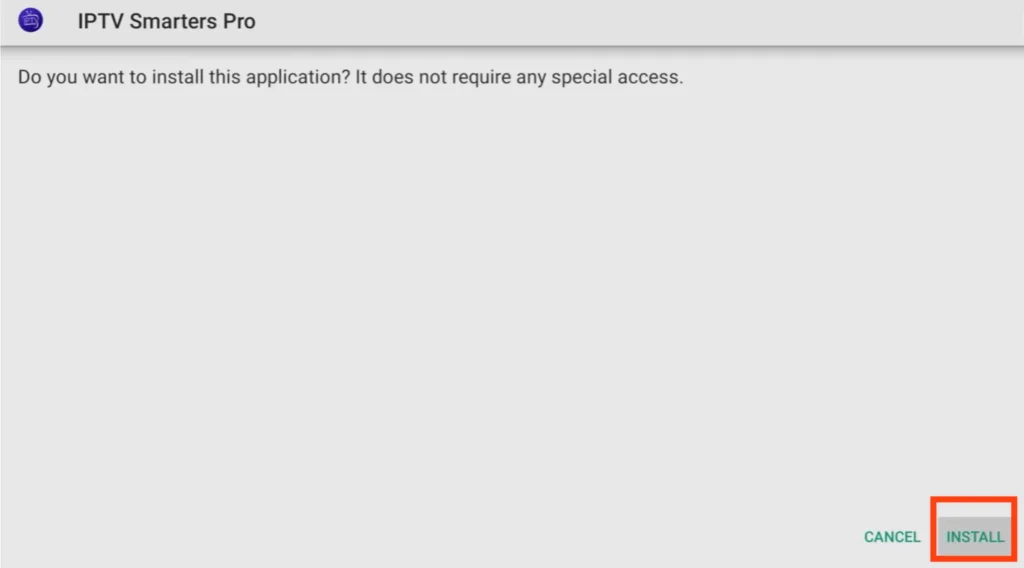
5. Once the download is complete, click Install.
After installation finishes, select Open or Done.
If prompted, you can safely delete the APK file to free up storage space.
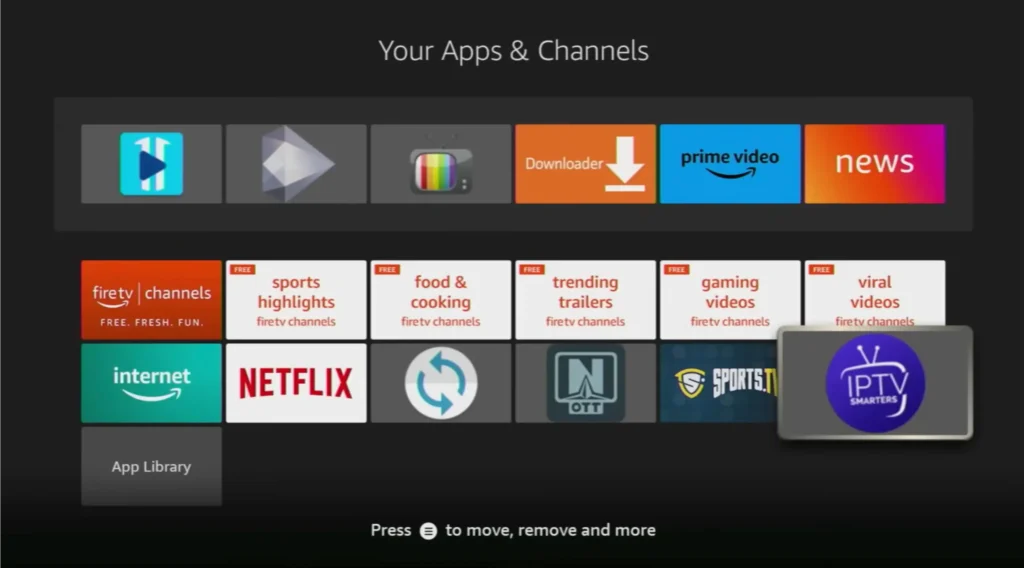
6. Return to your Apps section and open the IPTV Smarters app.
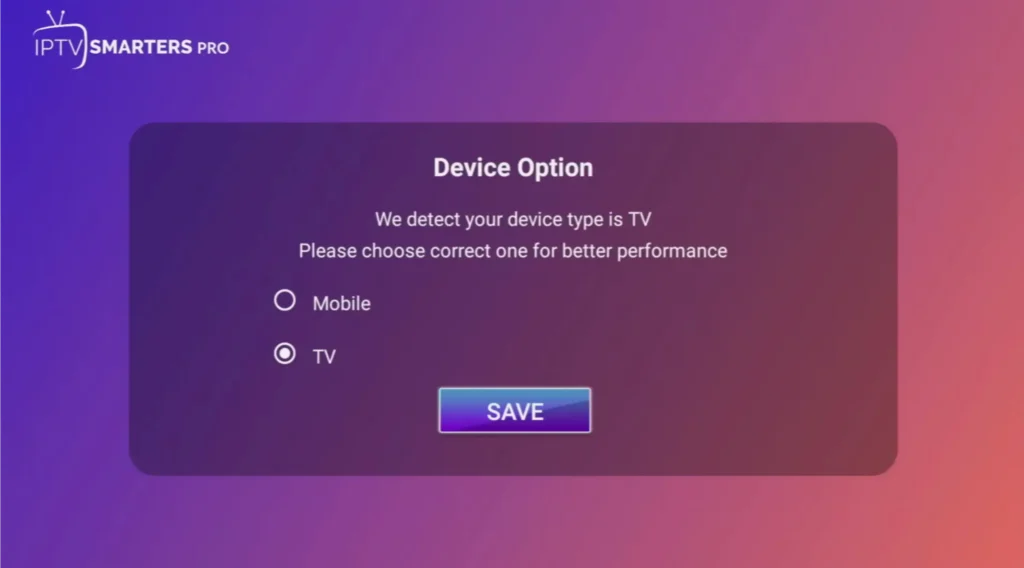
7. On the welcome screen, select the TV option.
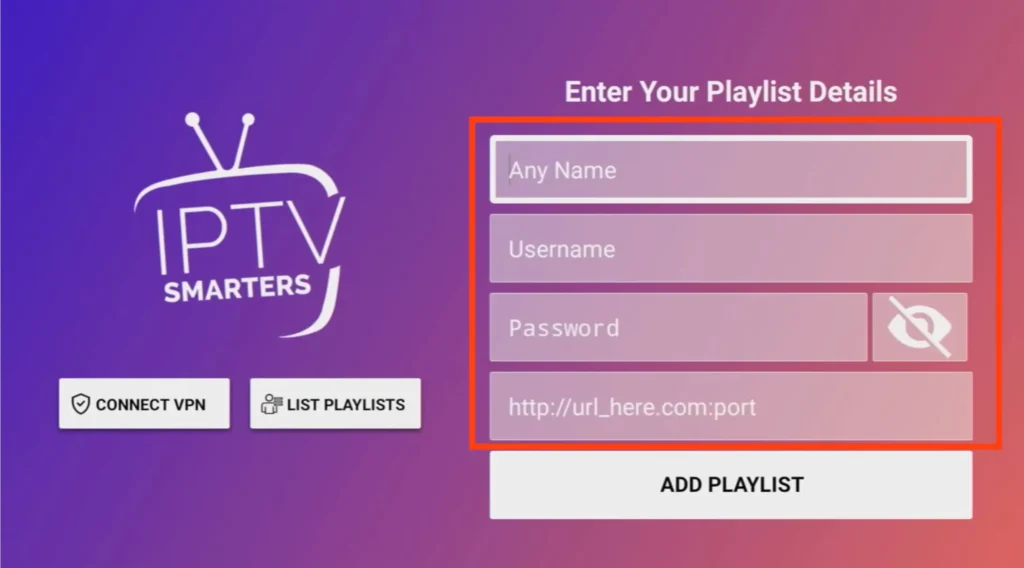
8. Choose Xtream Codes Login.
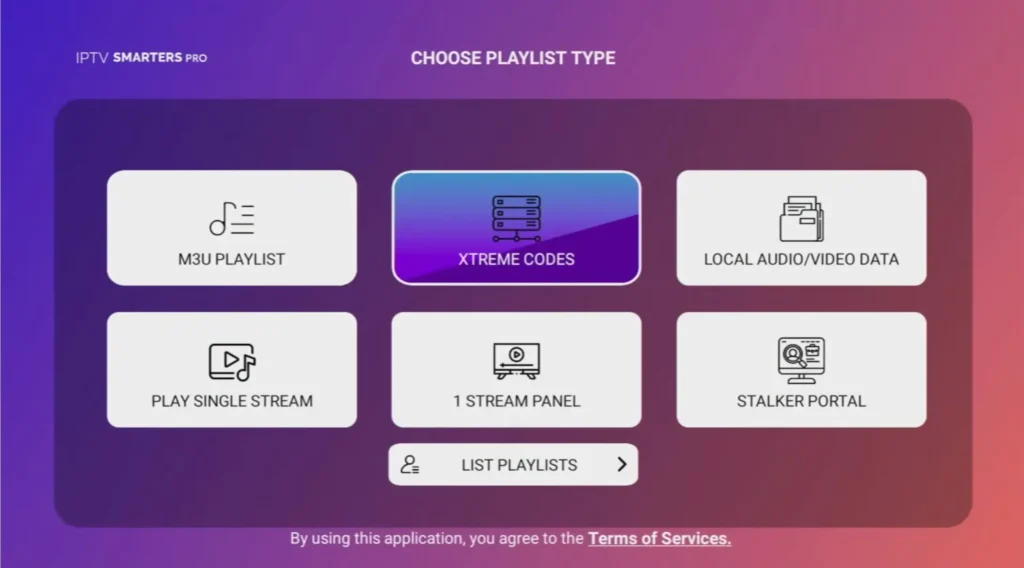
9. Enter your IPTV Smarters login details (username, password, and server URL) provided by your IPTV service.
Frequently Asked Questions
Is jailbreaking my Firestick illegal?
No. Enabling Developer Options and installing apps is a built-in feature of the Android operating system. However, streaming copyrighted content without a license is illegal.
Will this void my warranty?
No. You are not modifying the hardware or operating system. If you ever want to return the device to its factory state, simply perform a “Factory Reset” in the settings menu.
Why can’t I find Developer Options?
If you do not see Developer Options, ensure you have completed Step 1 correctly by clicking the device name inside the “About” menu 7 times.